
Every team wants to move faster, stay organized, and deliver work consistently. But in reality, it’s easy to lose track of priorities, get stuck in bottlenecks, or feel overwhelmed by competing tasks.
That’s where a Kanban board comes in.
In Jira, Kanban boards help teams visualize work, manage flow, and continuously improve. They’re not just tools – they’re frameworks for how teams think, collaborate, and get things done.
What Is Kanban?
Let’s start with the basics.
A Quick Look at Kanban’s Roots
The word Kanban (看板) is Japanese for “signboard” or “visual card.” The concept originated in the late 1940s at Toyota, when industrial engineer Taiichi Ohno introduced it as part of the company’s lean manufacturing system.
The goal was simple: make work visible.
By using cards to represent tasks on a board, workers could see exactly what needed to be done, what was in progress, and what was completed. This helped eliminate waste, balance workloads, and improve flow on the factory floor.
Over time, this idea moved beyond manufacturing into the world of knowledge work – software development, project management, marketing, design, and more. Today, Kanban is one of the core practices of Agile project management, helping teams everywhere improve efficiency and collaboration.
The Kanban Board Concept
At the heart of Kanban is the Kanban board – a visual representation of your team’s workflow. Think of it as a living map of your project.
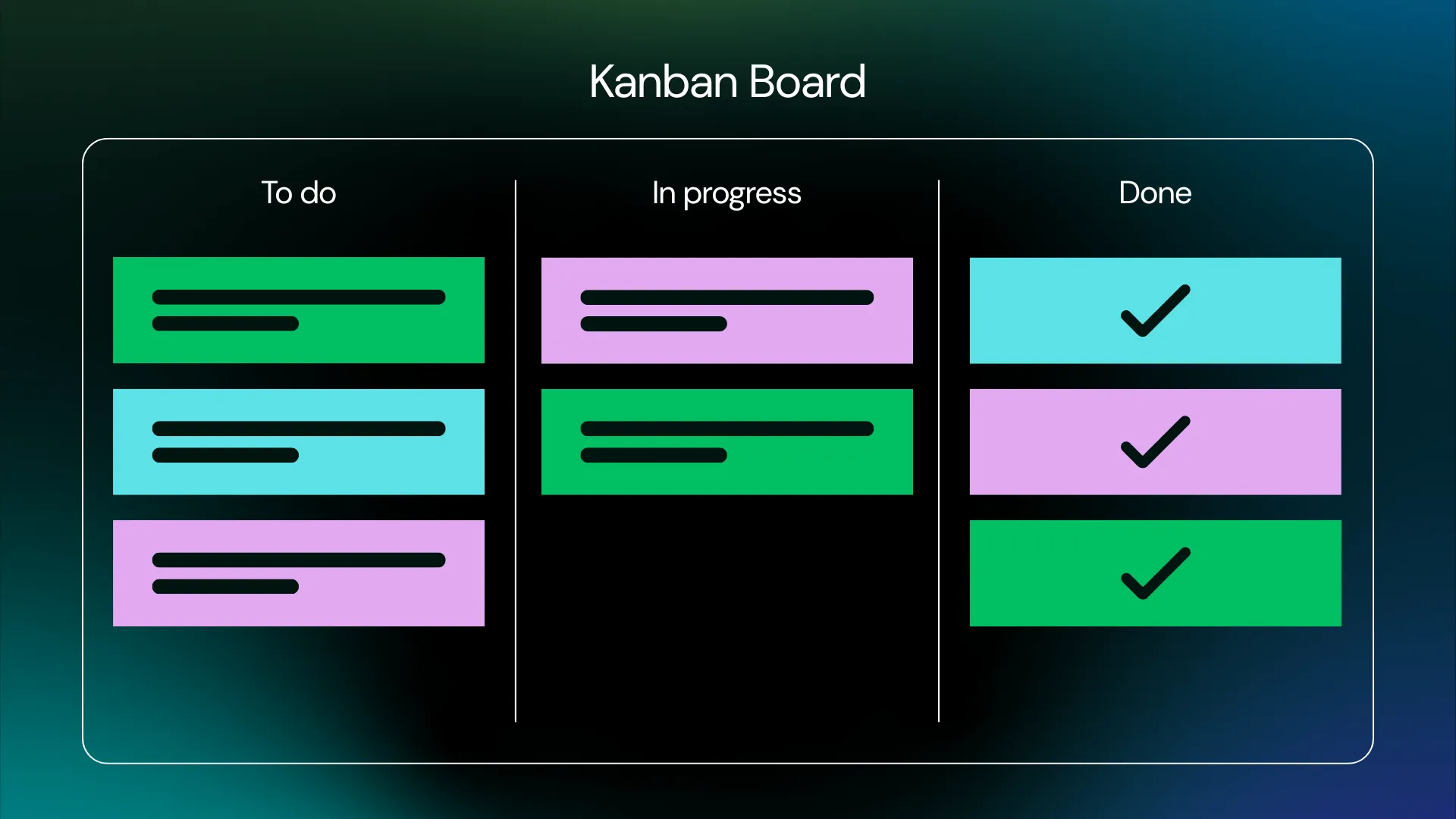
A Kanban board is usually divided into columns that represent the stages of work. For example:
- To Do – Tasks waiting to be started
- In Progress – Tasks currently being worked on
- Done – Completed tasks
Each piece of work (a task, story, or bug) is represented by a card that moves across the board as the work progresses.
This simple system provides instant clarity:
- Everyone knows what’s being worked on.
- Everyone sees who’s responsible for what.
- Everyone can spot where work is piling up.
That visibility is what makes Kanban so powerful. It’s not just about tracking tasks – it’s about understanding how work flows through your team and continuously improving that flow.
Why Kanban Matters in Jira
Jira transforms Kanban from a physical board into a dynamic, digital workspace.
In Jira, each issue or task becomes a Kanban card. These cards live on a customizable board where your team can:
- Drag and drop tasks between stages
- Set work-in-progress (WIP) limits
- Track progress in real-time
- Filter by assignee, priority, or issue type
Jira’s Kanban boards are especially useful for teams with ongoing work, like product maintenance, support, or continuous delivery. Unlike Scrum, which runs in sprints, Kanban is flow-based – work happens continuously, with no fixed timeboxes.
The result? A more natural, flexible way to manage work, visualize progress, and stay aligned.
Core Elements of a Kanban Board
Now that you understand the concept, let’s look at what makes up a Kanban board and how these parts work together.
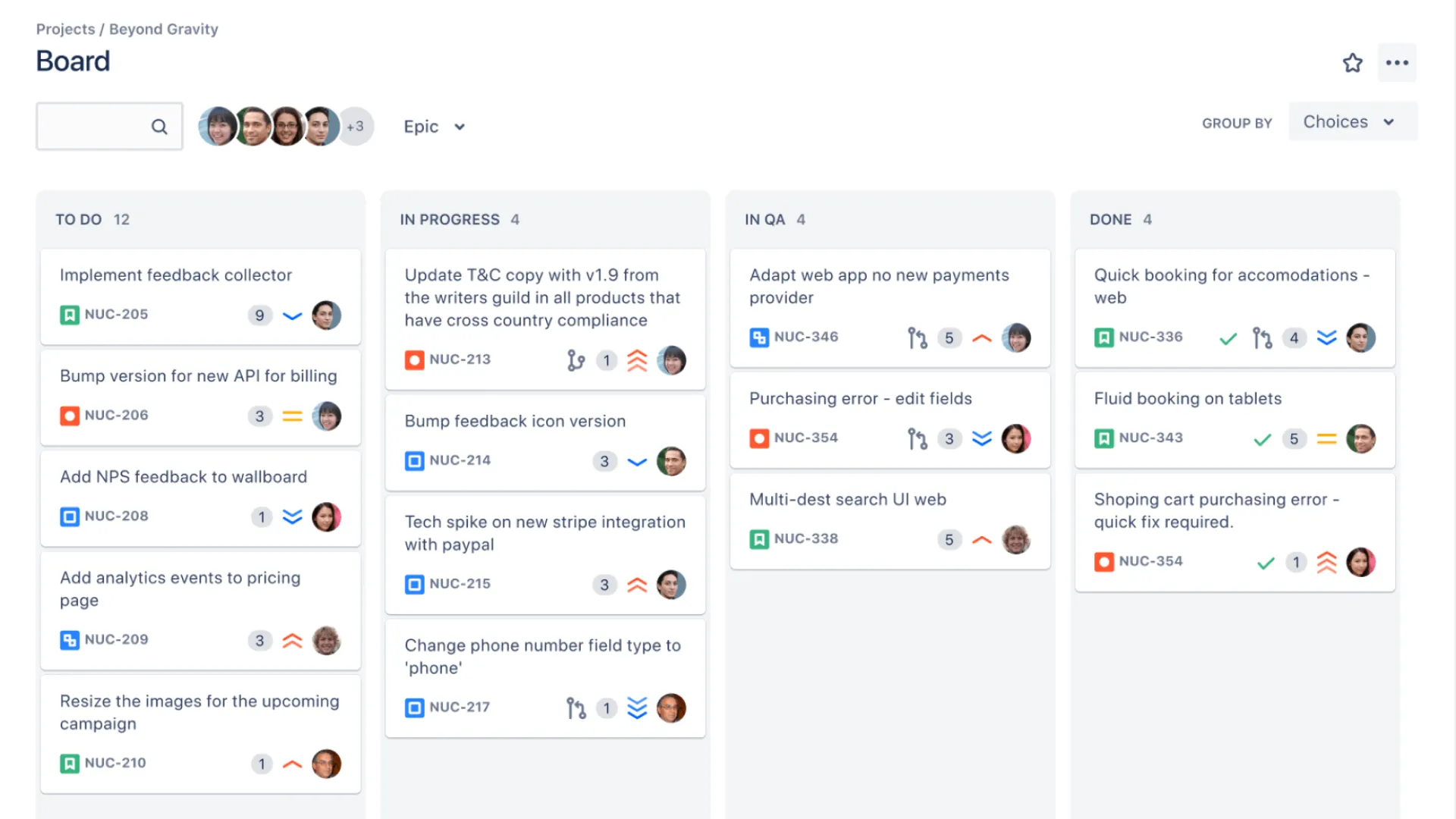
Cards
Cards represent individual work items – like a task, bug, or user story. They hold all the details needed to complete that piece of work: title, description, assignee, status, and due date.
In Jira, these are your work items (issues). You can open a card to see updates, attach files, add comments, or change the status. Cards move across the board as the work progresses, giving everyone an instant view of what’s being done.
Columns
Columns define the stages of your workflow. For example, a simple board might include To Do, In Progress, and Done.
More complex teams might add columns like Code Review, Testing, or Ready for Release. The key is to make sure your columns reflect your actual process – clear enough for anyone to understand, but not overly complicated.
WIP (Work in Progress) Limits
Work in Progress limits are a central principle of Kanban. They restrict how many tasks can be active in a column at one time.
For example, you might decide that no more than three items can be In Progress. If that limit is reached, the team must finish something before starting new work.
This simple rule helps maintain focus, avoid overload, and keep work flowing steadily.
Swimlanes
Swimlanes are horizontal sections that organize work into categories, such as by priority, team, or task type.
For example, you might have swimlanes for “High Priority,” “Regular Work,” and “Maintenance.” They make it easier to find what matters most without scrolling through a cluttered board.
Together, these four elements – cards, columns, WIP limits, and swimlanes – create a visual system that brings order and clarity to your workflow.
Why Kanban Boards Matter for Jira Teams
A Kanban board in Jira is more than just a to-do list – it’s a shared visual workspace that keeps everyone aligned.
When your team uses Kanban effectively, several key benefits quickly emerge.
Clear Visibility
Kanban makes your entire workflow transparent. You can see at a glance what’s being done, who’s doing it, and what’s coming next. This shared visibility reduces confusion and eliminates the need for constant status updates.
Better Collaboration
Because everyone can see the same information, team discussions become more productive. Daily check-ins are shorter and more focused, centered on what’s blocked or what’s moving next, not long status reports.
Steady Flow of Work
Kanban encourages a continuous flow instead of fixed sprints. New tasks are pulled in as the team has capacity, which makes it ideal for ongoing work or support teams. This approach helps maintain a sustainable pace without overloading anyone.
Improved Focus and Quality
WIP limits ensure that team members don’t juggle too many tasks at once. By focusing on finishing rather than starting, teams deliver higher-quality work faster and with fewer delays.
Continuous Improvement
Jira provides built-in metrics like cycle time and cumulative flow diagrams. These insights help teams analyze patterns, identify bottlenecks, and continuously refine how they work.
In short, a Kanban board helps Jira teams stay clear, consistent, and focused – turning chaos into control.
How to Customize Your Jira Kanban Board
Customizing your Jira Kanban board means adapting it to how your team actually works.
Here is a step-by-step guide to the key settings in Board settings → Layout that will help you tailor everything from columns to card appearance and filters.
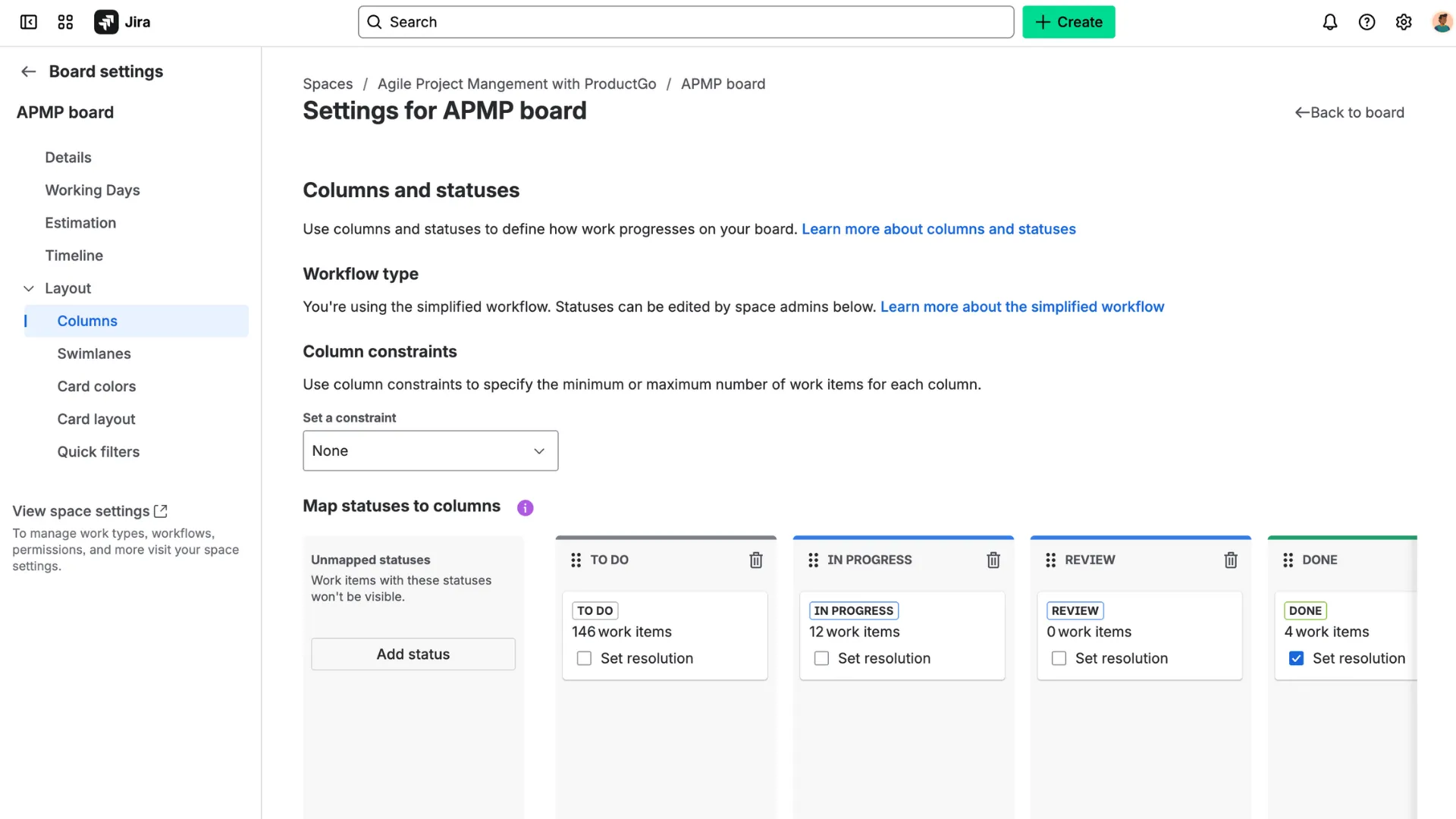
Columns
In Board settings → Layout → Columns, you can:
- Add, rename, or delete columns so the board reflects your actual workflow (for example: To Do → In Progress → Review → Done).
- Map Jira workflow statuses to each column, so items move correctly and show in the right stage.
- Set column constraints (e.g., maximum items in a column) to help enforce flow and avoid bottlenecks.
By configuring columns this way, you make sure the board mirrors your process rather than forcing your team into a generic workflow.
Swimlanes
Still in Layout, go to Swimlanes. Here you can:
- Choose how to group horizontal rows of work – by Assignee, by Epic, by Query (JQL), or other means.
- Add custom swimlanes using JQL (for example: priority = High or component = UI) so high-priority work stands out.
- Reorder or delete swimlanes to keep the board clean and readable.
Using swimlanes effectively helps your team focus on the most important work at a glance and keeps the board organized.
Card Layout & Card Colours
In the same Board settings, you’ll also find options to adjust how each card appears:
- Card layout: choose which fields appear on the front of each card (e.g., assignee, due date, labels). This helps make key info visible without opening each card.
- Card colours: assign colours based on issue type, priority, status, or a JQL query. Colours act as a quick visual cue to highlight critical or blocked items.
With the right card configuration, your board becomes more readable and actionable, not just a list of tasks.
Quick Filters
Finally, in Board settings → Layout → Quick Filters, you can build buttons that let your team filter the board easily. For example:
- Filter to show only “High Priority” work (priority = High)
- Show only your assigned tasks (assignee = currentUser())
- View bugs only (type = Bug)
You do this by defining a Name and JQL for each filter. Quick Filters give each team member the ability to focus on what matters to them without altering the board for everyone.
→ Related content: Why you should customize your Kanban board in Jira?
Solving Common Jira Kanban Problems with Custom Kanban by ProductGo
Even though Jira’s built-in Kanban boards are powerful, many teams reach a point where they need more flexibility. That’s where Custom Kanban by ProductGo comes in. It extends Jira’s functionality, giving teams better control, clearer visuals, and smarter automation – all without losing the native Jira connection.
Why Your Team Needs ProductGo
As your projects grow, your Jira board can start to feel cluttered or restrictive. Managing multiple projects, maintaining visibility, or setting up deeper reporting can become challenging.
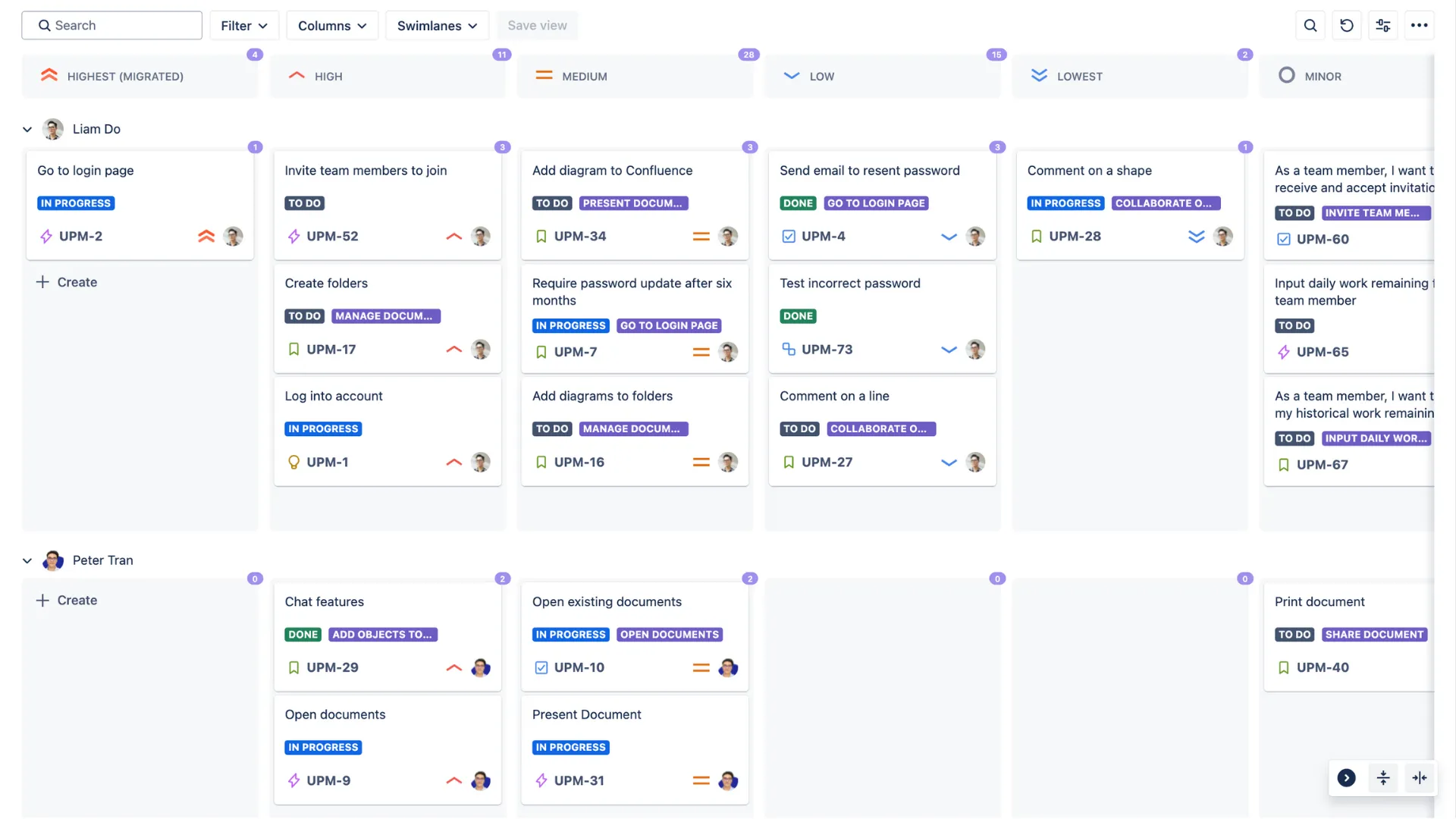
ProductGo helps solve these problems by offering a more advanced and customizable Kanban experience. It allows you to tailor every aspect of your workflow – columns, swimlanes, colors, filters, and roles – so that your team’s process feels natural, not forced.
How ProductGo Solves Common Challenges
| ⭕️ Challenge | ❇️ Custom Kanban by ProductGo |
| Limited customization / cluttered boards | Assign fields to both columns and swimlanes for a cleaner, more tailored layout. |
| Too many projects flooding Jira | Manage multiple projects in ProductGo while keeping all issues synced with Jira. |
| Weak visualization and filters | Use advanced filters and JQL to create custom views and focus on what matters. |
| No field-driven swimlane or column setup | Configure columns and swimlanes based on any Jira field, like priority or assignee. |
| Manual updates, slow task movement | Auto-update Jira fields when moving tasks across columns or swimlanes. |
| Limited reporting and insights | Get built-in stats showing issues per column, swimlane, or section. |
| No role-based permissions | Control access with roles: Admin, Planner, and Viewer. |
By addressing these common Jira limitations, ProductGo’s Custom Kanban turns your board into a flexible, data-driven workspace – easy to manage, visualize, and scale with your team’s workflow.
→ Get started with Custom Kanban by ProductGo
Custom Kanban Best Practices
To get the most out of your Jira Kanban board – whether you use the built-in version or customize it with ProductGo – keep these best practices in mind:
- Start simple. Begin with just a few columns and basic rules. Add complexity only when it genuinely helps your team.
- Limit work in progress. Encourage focus by setting WIP limits that prevent overload.
- Review regularly. Use brief retrospectives to see what’s working, what’s blocked, and where to improve.
- Keep cards updated. A board only works if it reflects reality – make sure tasks move and details stay current.
- Use data. Metrics like cycle time and throughput help you understand your team’s rhythm and where bottlenecks form.
- Make it a team habit. The board belongs to everyone. Encourage each team member to maintain it and take ownership of their tasks.
When practiced consistently, Kanban becomes more than a workflow – it’s a mindset of continuous improvement and shared accountability.
Final Thoughts
A Jira Kanban board gives your team clarity, structure, and flexibility – all in one place. It helps you manage work visually, stay organized, and deliver value faster.
And when paired with tools like ProductGo’s Custom Kanban, it can evolve into a system perfectly tailored to how your team works.
Start simple, keep it visual, and focus on finishing. That’s the heart of Kanban – and the key to building a team that’s efficient, adaptable, and in control of its work.