Jira’s built-in AI (Rovo) can split an epic into smaller work items, but it doesn’t build a story map. To get one, use a story map app with AI. In ProductGo, you describe your product, then let the AI suggest goals, steps and stories, and you keep the ones that fit. A first draft takes one sitting, not a full workshop.
AI features change quickly, so if you’re reading this a while after November 2026, some menus may look a little different.
It’s Monday. Your new product kickoff is on Thursday, and the story map is still an empty board.
AI won’t run your mapping workshop for you. What it can do is give the team something to react to on day one, which is often the hardest part. Here’s how to set it up, step by step, plus a worked example you can copy. New to story mapping itself? Our user story mapping guide covers the basics first.
What AI can and can’t do for your story map
Jira has its own AI. Atlassian’s AI work breakdown suggests child work items for a larger item, and Atlassian’s AI, Rovo, is now included on every paid Jira Cloud plan (Standard, Premium and Enterprise, but not Free), with a monthly allowance of AI credits per user. Rovo can also break an epic into stories, tasks and acceptance criteria.
Both are useful for splitting work. Neither lays that work out as a user journey, which is the whole point of a story map.
AI is good at the first draft. What it can’t know is your users, your priorities, or what’s realistic for the next release. Those stay with your team.
So treat whatever the AI gives you as a draft to argue with, not a plan to follow.
Before you start: 3 things to prepare
-
The right access. A project admin or Jira admin creates the AI setup, and a Jira admin can switch the feature on or off in ProductGo’s General Settings.
-
A short product description. Three to five sentences is plenty. Fill in this template:
We’re building [product] for [who]. Today they struggle with [problem]. With our product, they can [main outcome]. Most of our users are [a line or two about them: role, experience, what they care about].
That last sentence matters. The generator doesn’t read your personas, so put the key details right here.
-
Your main features. List five to eight in plain words, like “online booking” or “payment reminders”.
Step by step: build your map with ProductGo’s AI generator
The flow below follows ProductGo’s documentation.
Step 1: Describe your product
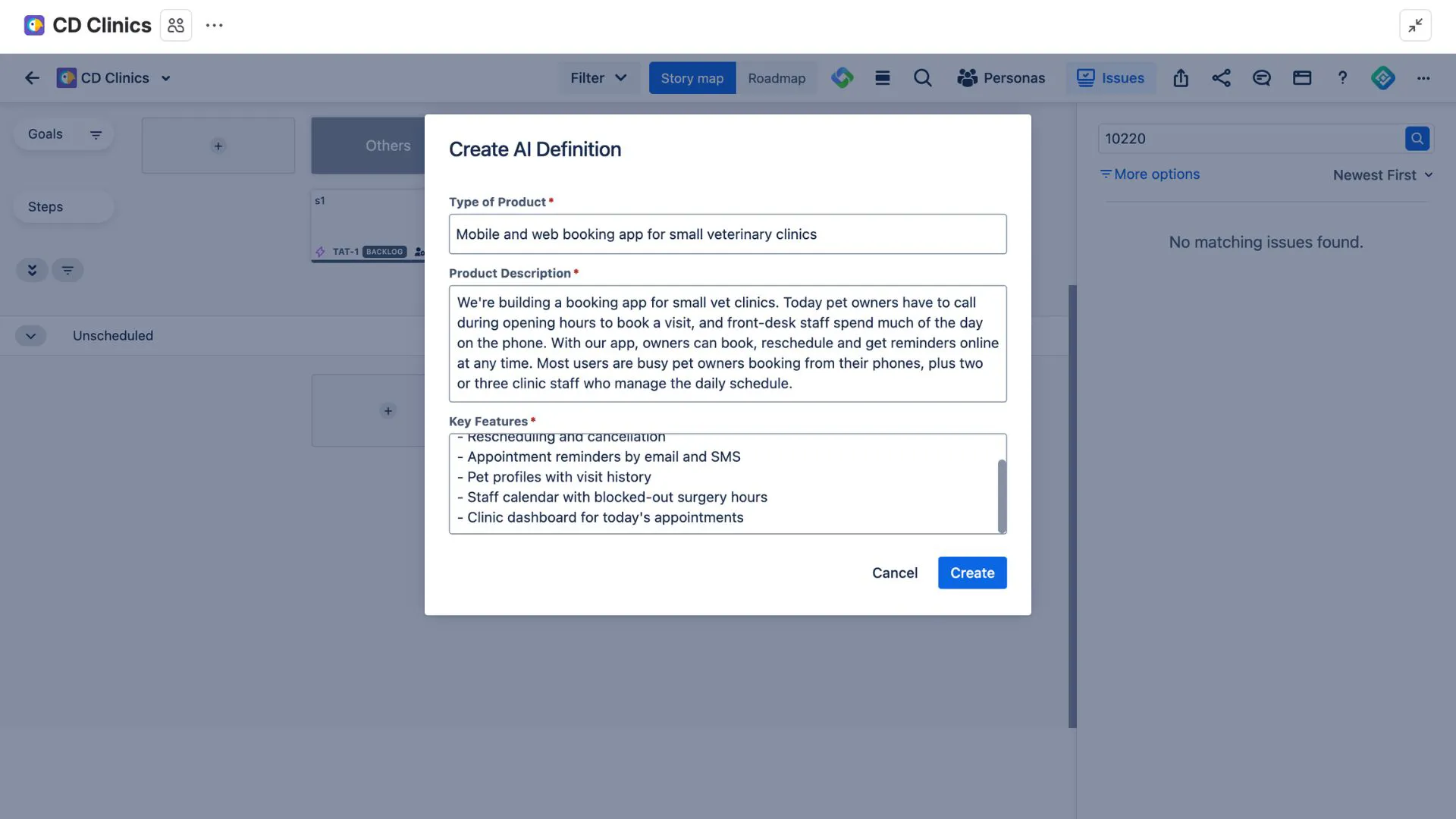
Open your story map and click AI Generator in the top bar, then choose Create Generator Definition. Paste in your product type, the description you prepared and your list of main features.
Check: could a new teammate read your description and explain the product back to you? If not, the AI will struggle too.
Step 2: Generate goals
Click Generate Goals. The AI suggests the big things your users want to get done. Keep the ones that fit and regenerate the rest.
Check: good goals are written from the user’s side, like “Book an appointment”, not “Calendar module”. If a goal reads like a feature, drop it or reword it.
Step 3: Break goals into steps
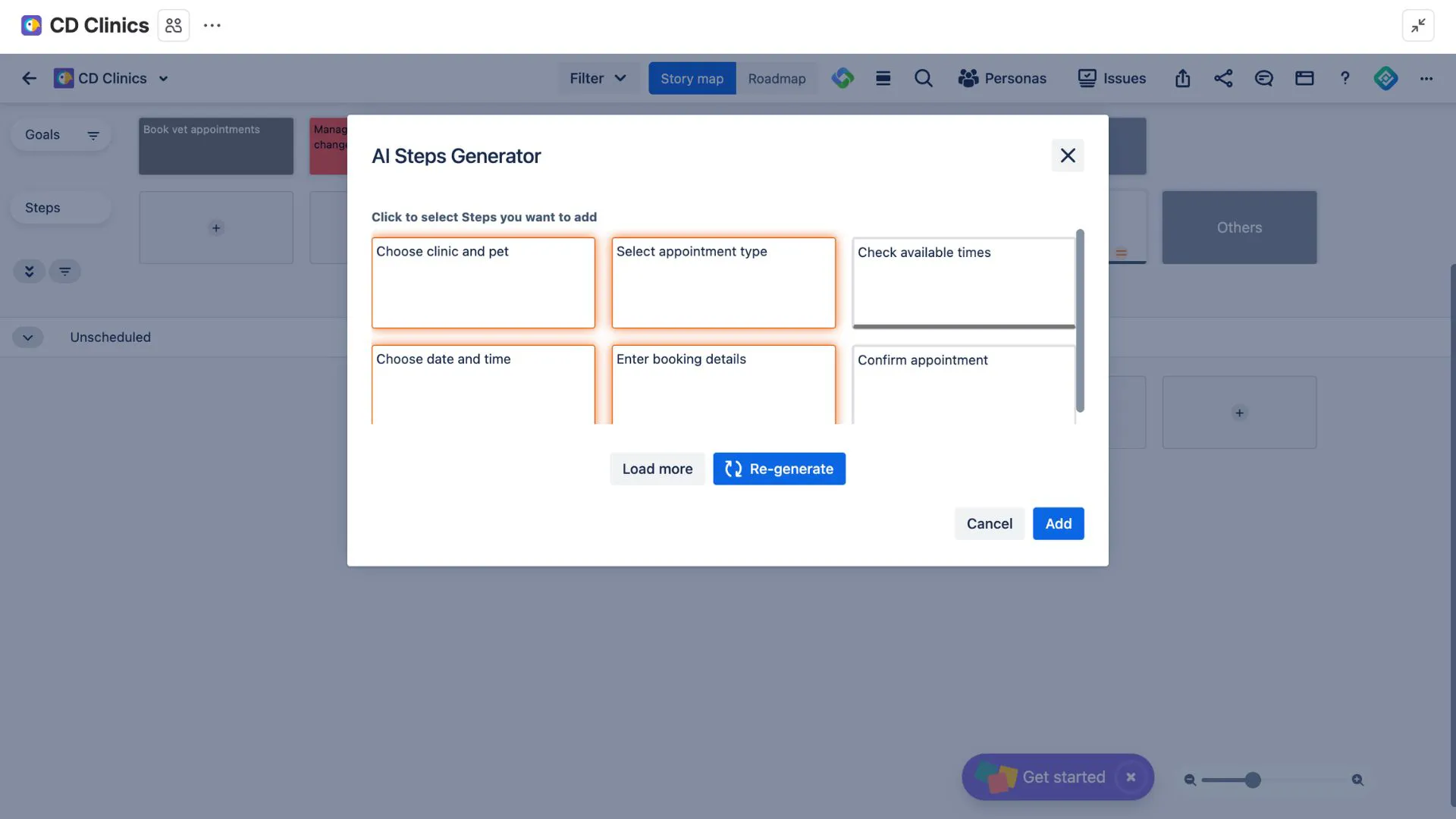
Hover over a goal and click the AI icon. The AI Steps Generator opens with the steps a user takes to reach that goal. Click Re-generate if they don’t feel right.
Check: read the steps in order, out loud. Do they sound like what a real user does, in the order they’d do it?
Step 4: Generate stories
On a step card, open its options menu and choose Generate Stories. Pick the stories you want and add them to the map.
The stories you add become real Jira work items right away, following your ProductGo settings.
Check: could a developer pick up each story and know what “done” means? If not, edit it now, while the context is fresh.
Step 5: Shape your first release
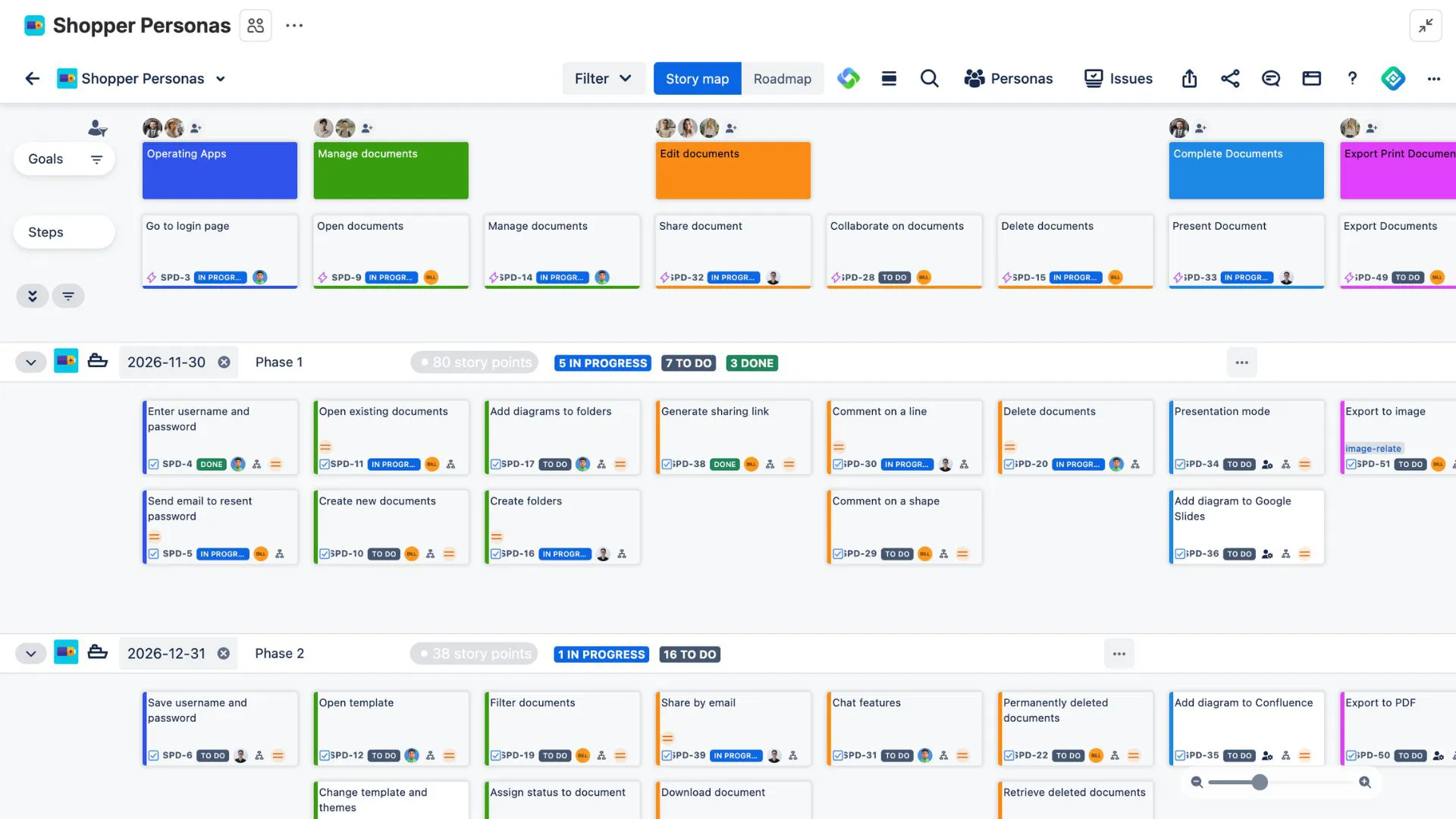
This is where your team takes over. Drag stories into release swimlanes until the first release is the smallest version that still works from start to finish.
Check: can a user complete at least one goal with only the first release? If so, you’ve got a release worth shipping.
For more on this part, see our guide to release planning with a user story map.
A worked example: a booking app for a vet clinic
To show what a good draft looks like, here’s one we wrote by hand. It’s not real AI output, just an example of the shape to aim for.
Description: We’re building a booking app for small vet clinics. Today pet owners have to call during opening hours to book. With our app, owners can book, reschedule and get reminders online. Most users are busy pet owners on their phones, plus two or three clinic staff.
Main features: online booking, reminders, rescheduling, pet profiles, staff calendar.
Goals: Book a visit · Manage my pet’s care · Run the clinic’s day
Steps for “Book a visit”: Find a time → Choose the pet and reason → Confirm → Get a reminder
A few stories under “Find a time”:
-
As a pet owner, I want to see open slots for this week so I can pick one that fits.
-
As a pet owner, I want to filter by vet so I can see the one my pet knows.
A sensible first release might be booking and confirmation only. Reminders and pet profiles can wait.
Tips for better AI suggestions
Name your users in the description. “Busy pet owners on their phones” gets you very different stories than “users”.
Work one level at a time. Get the goals right before you generate steps, and the steps right before you generate stories. Changing a goal later can mean redoing the steps and stories under it.
If your team works in another language, ProductGo’s interface is available in Japanese, Chinese, Korean, German, French and Spanish as well as English.
Final thoughts
Try it this week with one small epic or a side project. Write the description, generate the goals, and see how much of the draft your team keeps.
If you’re still deciding whether you need a story map app at all, our guide to whether Jira has user story mapping compares the options.
→ Try ProductGo’s AI story map generator, free for up to 10 users on Jira Cloud.
FAQ
Can Jira’s built-in AI create a user story map?
Not as far as we can tell. Jira’s AI can suggest child work items and Rovo can break an epic into stories, but neither lays them out as a user journey with release lines. For that, you’ll need a story map app.
Does the AI create real Jira issues, or only cards on the map?
Real Jira work items. Stories you add from the AI generator are created in Jira right away, based on your ProductGo settings. Steps become epics, and goals link to a mapped issue or are saved in the app.
Who can use ProductGo’s AI story map generator?
A project admin or Jira admin creates the AI setup, and a Jira admin can turn the feature on or off in ProductGo’s settings. It’s available on Jira Cloud.
Is the AI generator included in the free plan?
Yes. Every ProductGo plan includes the AI generator, including the free plan for up to 10 users on Jira Cloud.
What should I write in the product description?
Who it’s for, the problem they have today, the main outcome, and a line about your users. Three to five sentences is enough.
Which AI does ProductGo use, and how is my data handled?
The generator currently uses OpenAI. For details on how DevSamurai handles your data, see the DevSamurai Trust Center.